


- Getting Started
- Search Filters
- Connection Statuses
- Switching to a New Partner
- Authorization
- Profile Customization
- Settings (Ringtones, Camera, & Audio)
- Text Chat
- My Achievements
- History — Contact List
- FAQ
Hi friends! Many users visiting us for the first time are unsure how to navigate the Shomla platform. We decided to write this detailed guide to help you understand exactly how to use Shomla Video Chat.
Getting Started
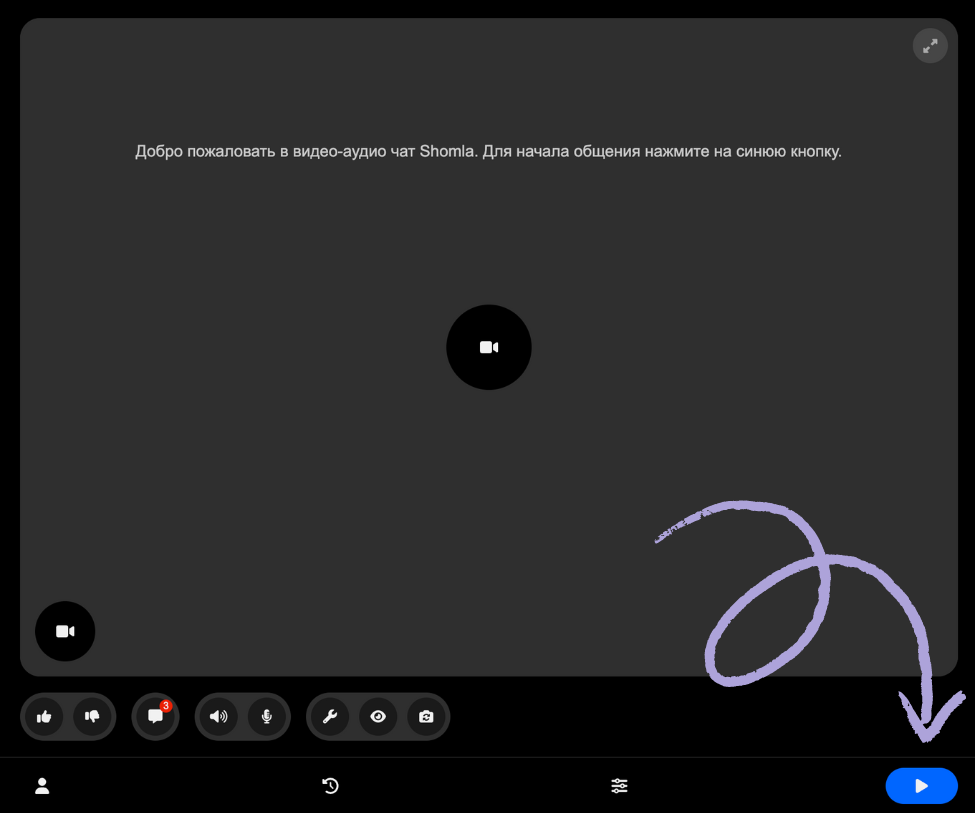
All you need to do is press the Blue Button. Once pressed, your request is sent to the server, you are added to the list of active users, and the search for a partner begins. If you are looking for specific types of participants, you can use the filters.
Search Filters
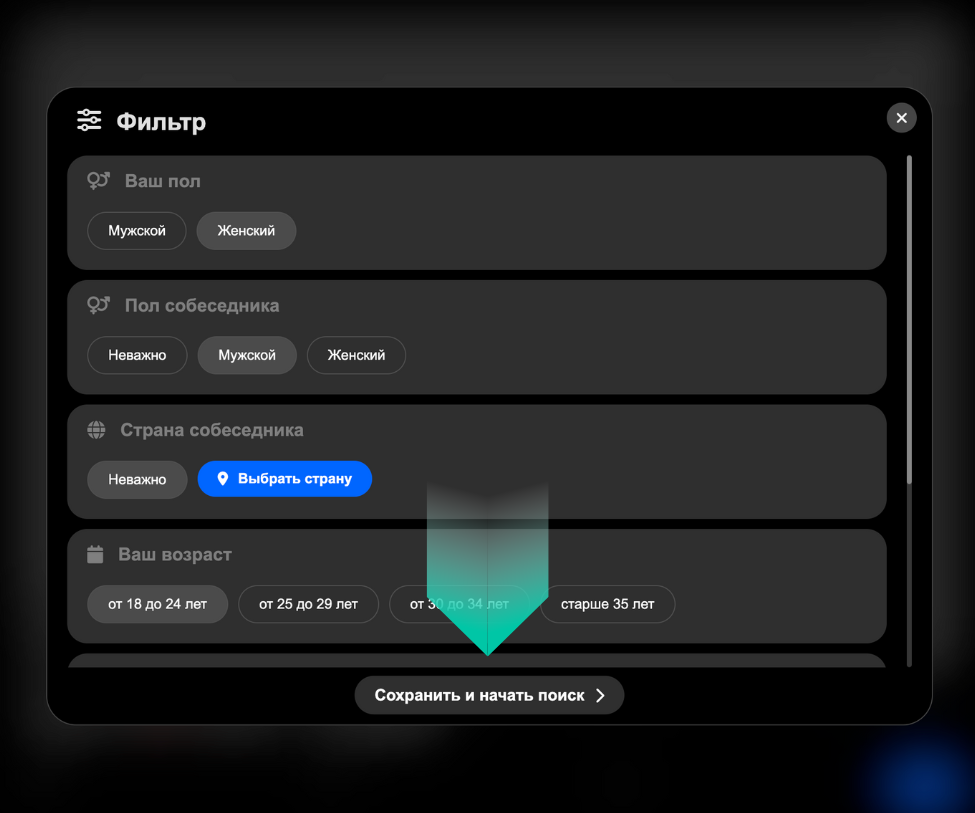
In the filters, you can specify your gender, the preferred gender of your partner, your age range, their age range, and their country. After filling this out, click “Save and Start Search.”
Connection Statuses
If a partner is available from the current list, a Participant Card will appear. This card shows the candidate’s popularity, name, and avatar. You have two options: “Accept” or “Decline.” If you click “Accept,” the card disappears, and you will see the interaction status. There are two main statuses:
Waiting: The candidate has not yet accepted the invitation.
Connecting: Both parties have clicked “Accept,” and the system is establishing the video link.
Switching to a New Partner
To switch to a new person, use a swipe-left gesture. This breaks the connection with the current user and marks them as “previously contacted” so you don’t keep matching with the same person. A new request is then sent to the server. To stop searching entirely, press the Red Button. This removes you from the active search list.

Authorization
To log in to the system, click the “User” icon. This opens a panel with an “Authorize” button. Click it to see the various services (Google, Social Media, etc.) you can use to log in.
Profile Customization
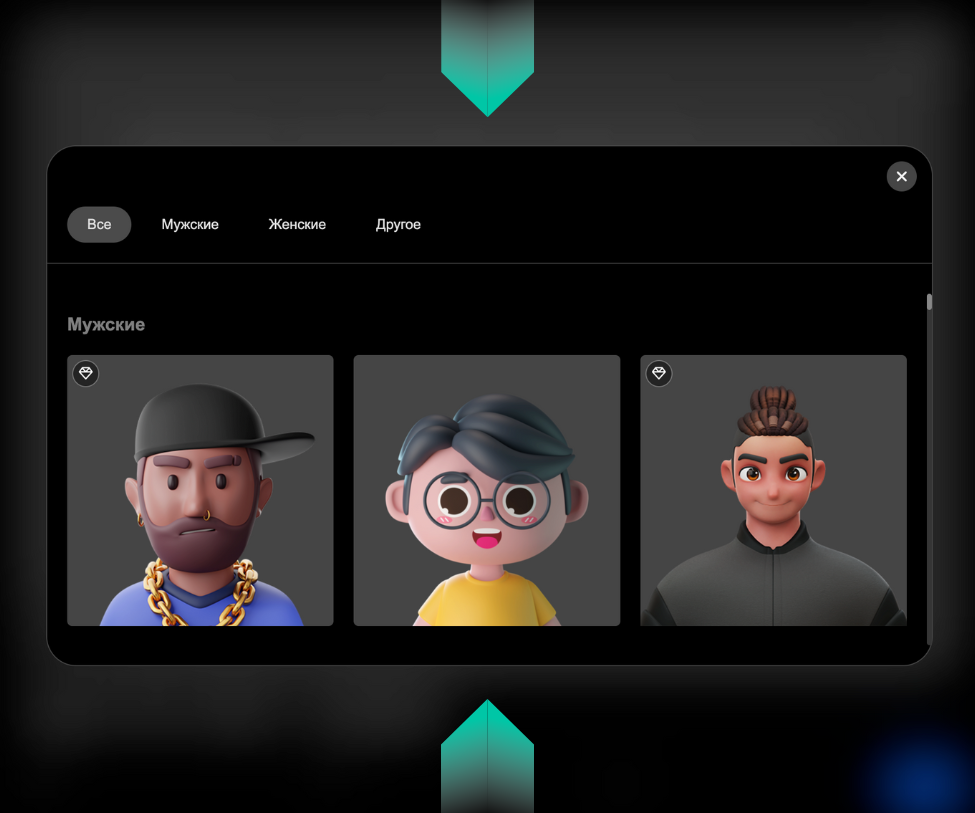
Choosing an Avatar: You must be logged in to change your avatar. Click the “User” icon, then click on your current image. A list of available avatars will appear—simply click the one you like.
Changing Your Name: Click the “Pencil” icon and enter your new name. There is no need to refresh the page; changes are saved automatically.
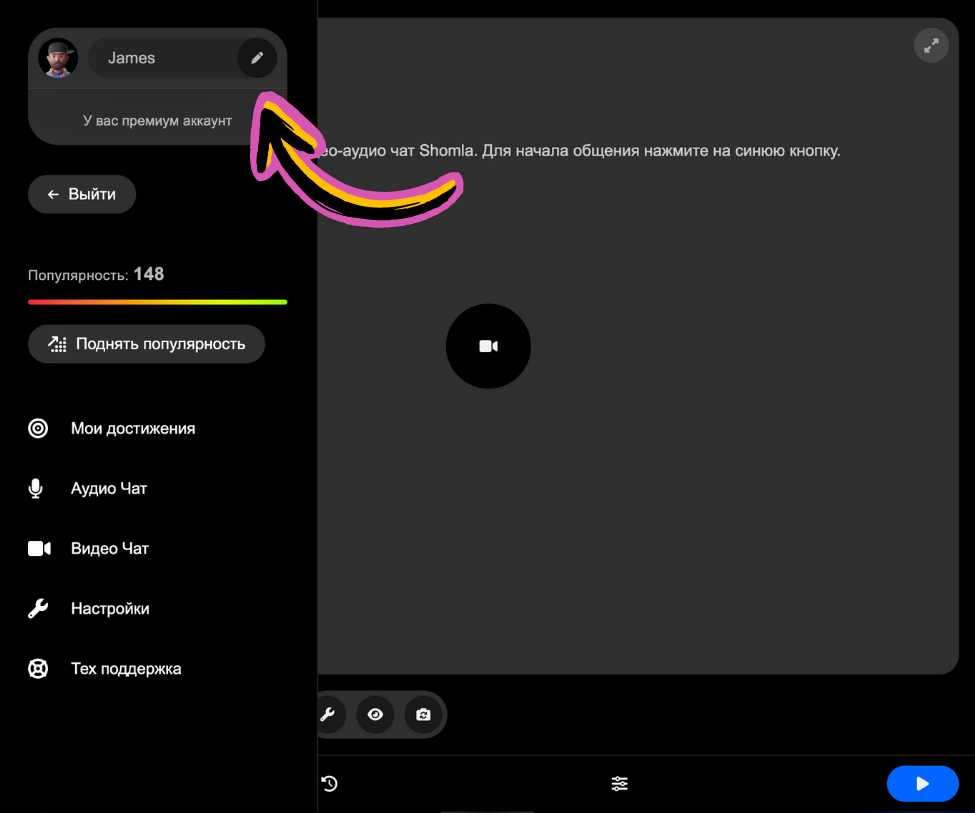
Settings (Ringtones, Camera, & Audio)
Change Ringtone: Go to settings by clicking the “Gear” icon. Select “Sounds” to see a list of melodies. You can preview them and select your favorite before clicking “Close.”
Switch Camera: To switch between front and back cameras, click the “Camera” icon. This can be done even during a call without breaking the connection.
Muting: To turn off your microphone, click the “Microphone” icon. Similarly, click the “Speaker” icon to mute the incoming sound.
Text Chat
To communicate via text, click the “Chat” icon. A window will open with a text field. Type your message and hit the send icon. Your partner will receive a real-time notification.
My Achievements
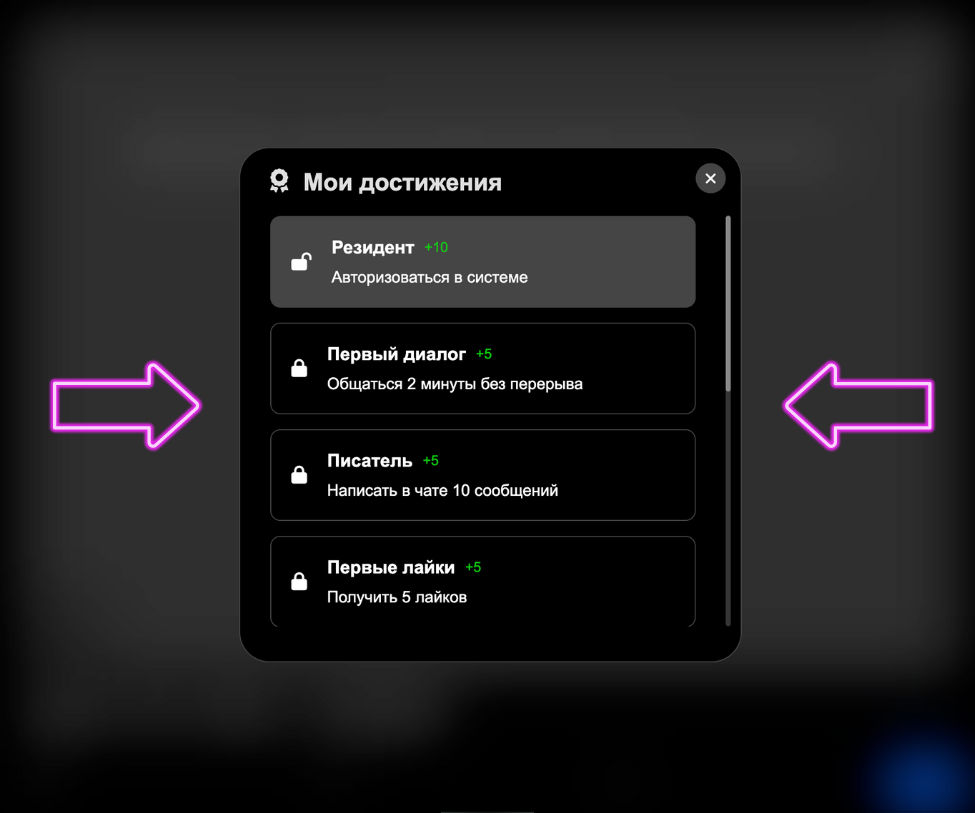
In the “My Achievements” section, you can see tasks that reward you with Points.
Open Lock: The task is complete, and points have been awarded. Earning points helps you boost your popularity on the platform faster.
Locked Lock: The task is not yet completed.
History — Contact List
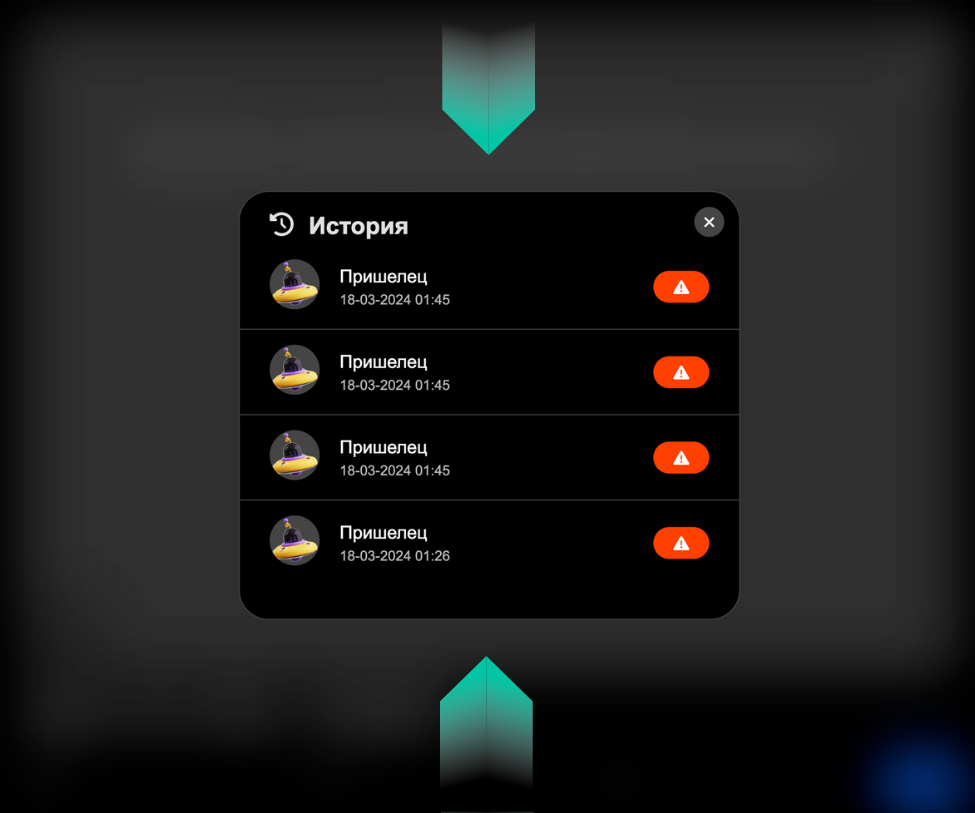
In this section, you can see who you talked to and at what time. if someone violated the service rules, you can report them by clicking the Red Button and selecting the reason. Our moderators will then review the user.
Conclusion
Using Shomla is not just fun—it’s a useful way to meet people from all over the world and expand your horizons. We hope this guide helps you enjoy the platform comfortably and effectively. Good luck and have fun!
FAQ
What are the main safety principles on the Shomla platform?
Safety includes data encryption, content moderation, and a robust reporting system for users who violate the community guidelines.
What measures are taken to ensure user privacy and anonymity?
We use data encryption, allow anonymous chatting, and provide the option to use pseudonyms and avatars. Users have full control over their personal information and how much they choose to share.
What possibilities does the filter system offer?
The filters allow you to narrow down partners by gender, age, and country, reducing the time it takes to find a partner who matches your interests.
How do I use Shomla Video Chat correctly?
The best way is to follow this guide: set your filters, be respectful during video calls, and use the “swipe” feature to find the right conversation partner safely.
No Comments